Smart People Column application
Custom People column view for monday.com that gives full control over who can be assigned to items with different configs for columns inside one board.

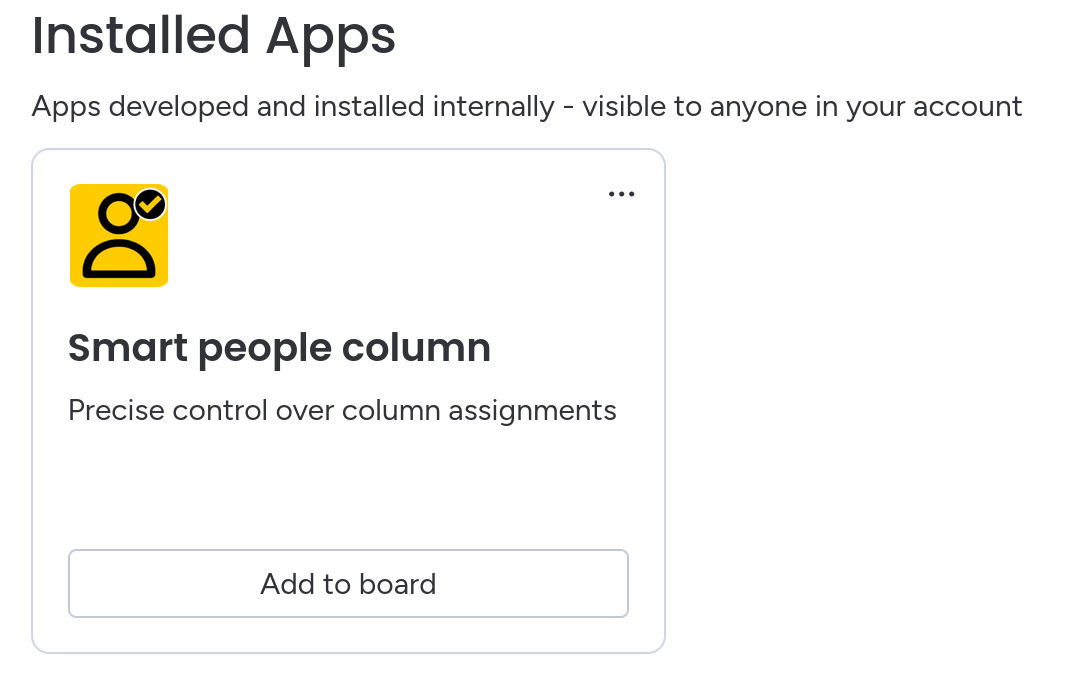
Add Smart People Column to the board
- Select More columns in new column popup
- Select Installed Apps in opened Column Center
- Click Add to board under Smart person column card
Column Settings
Board owner should authorize application to start column usage. Open column settings to do it.
If user who authorized the application loses board owner permissions, some other board owner should reauthorize the application.
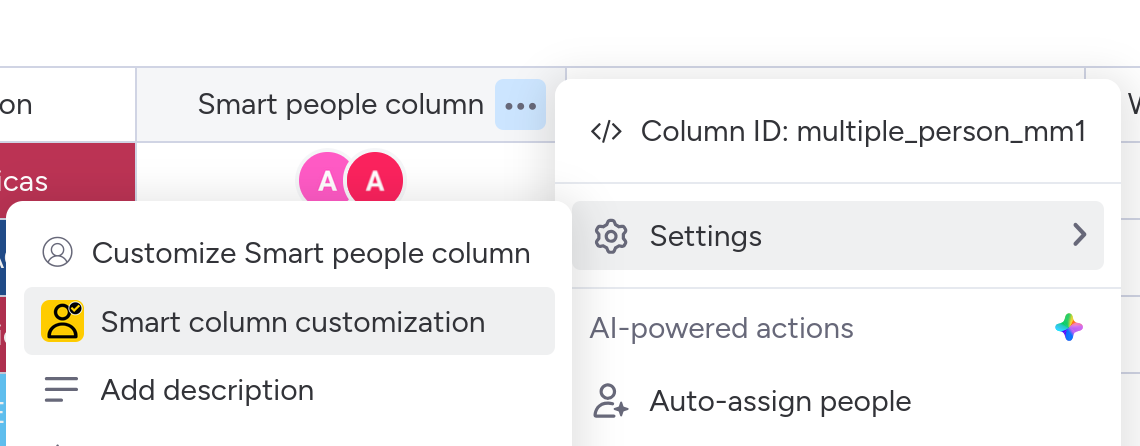
The settings dialog has two tabs: Column Settings and Data Migration. After authorization column settings are accessible to all people with column editing permissions. Data migration is available only to board owners.
Assignment Kind Limit
Control what types of members can be assigned to the column:
- People Only - only individual users can be assigned
- Teams Only - only teams can be assigned
- People & Teams - both people and teams can be assigned (default)
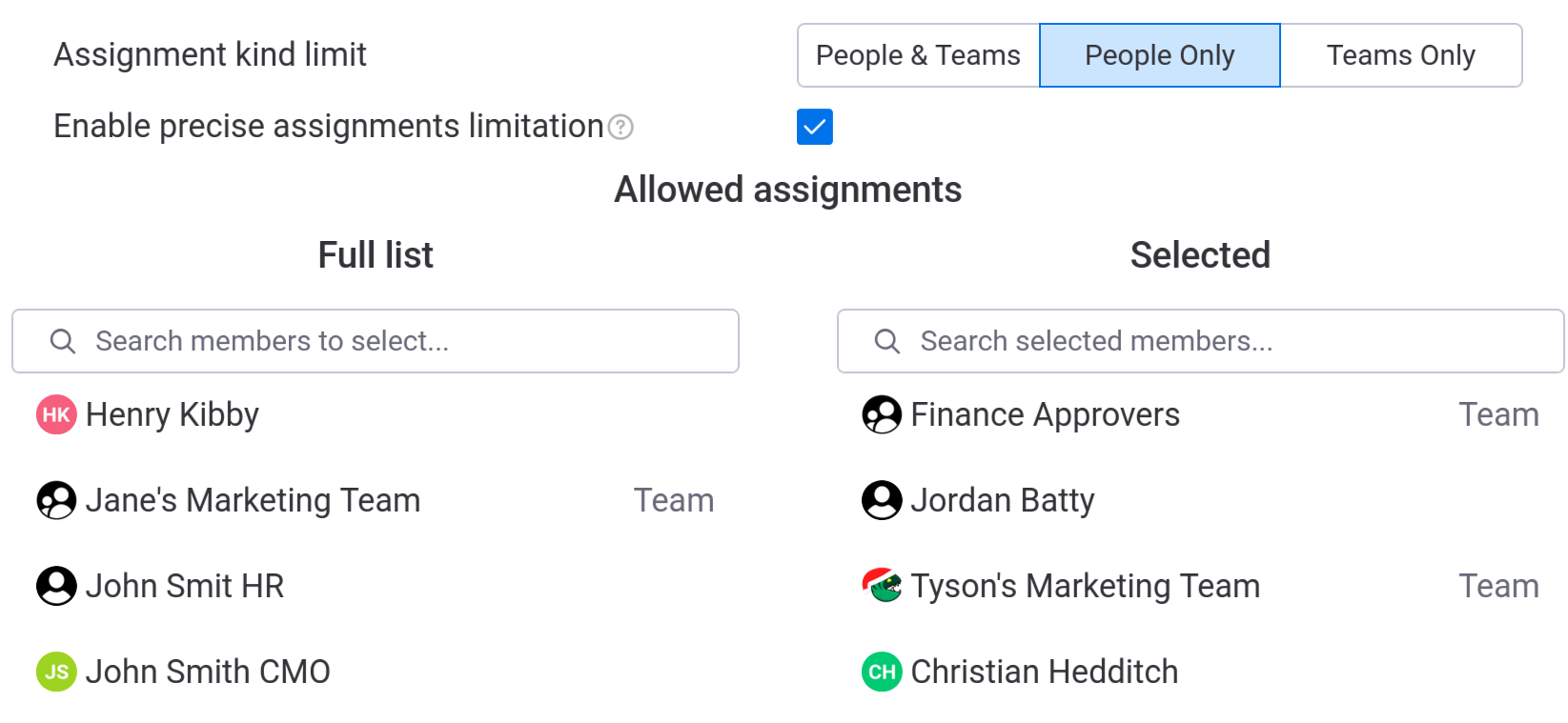
Precise assignments limitation
When Enable precise assignments limitation is turned on, only specifically chosen members appear in the selection dropdown.
Selection of the Team allows all of its members to be assigned to the column.
When filtering is disabled, all board members are available for selection according to the board settings.
It may take up to 15 minutes for new people, teams, or changes to existing member names to be shown in the application.
Data Migration
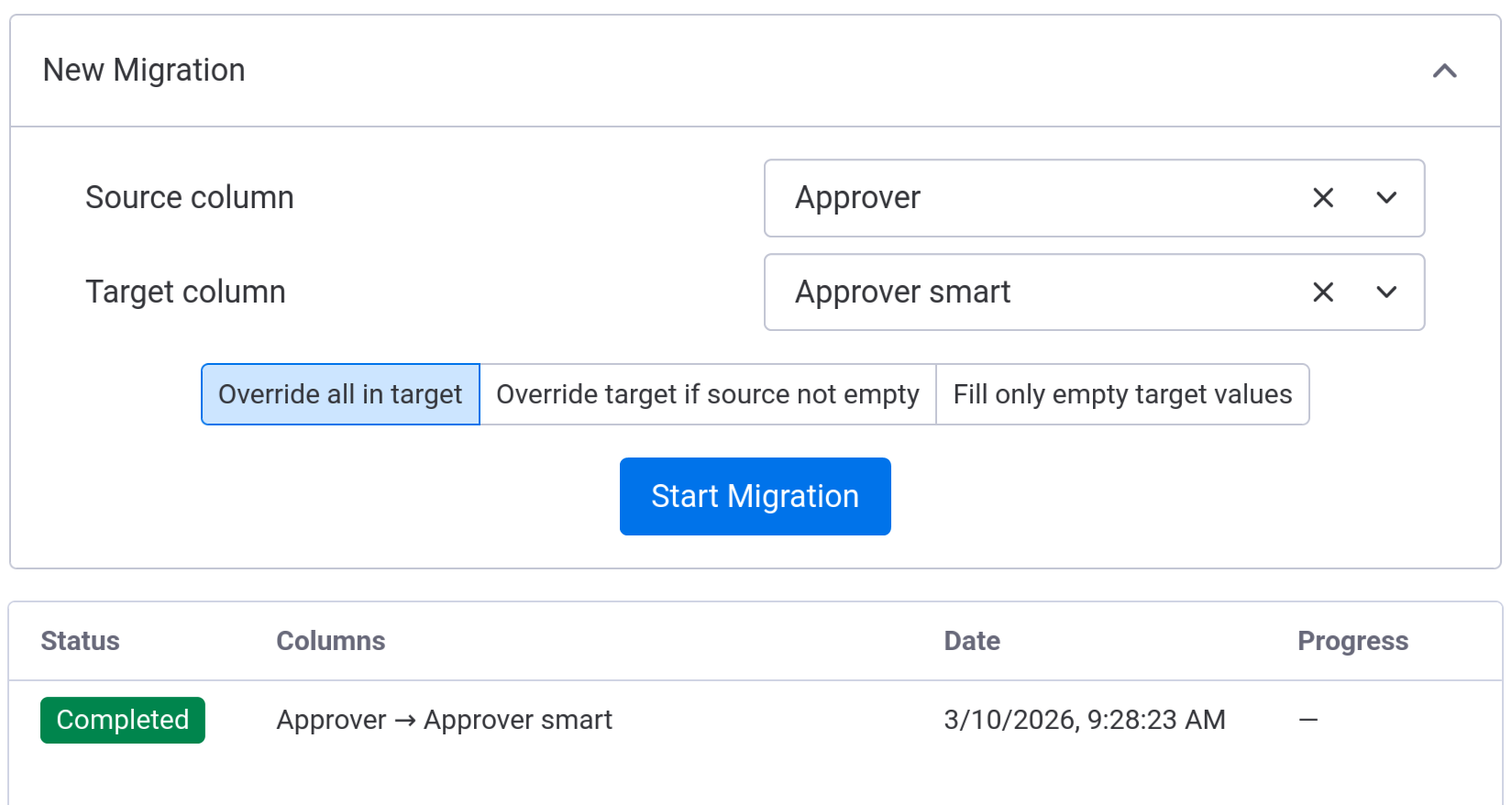
The Data Migration tab (available only to board owners) allows copying member assignments from one People column to another. This provides simple way for migration of current columns to the Smart People Column, as well as migration back to the native column.
Creating a Migration
Select source and target People columns and choose a migration strategy:
- Override all in target - replaces all values in the target column with values from the source column
- Override target if source not empty - does not replace non-empty target values with empty values from source
- Fill only empty target values - does not replace all non-empty target values
Migration Progress
After starting a migration, progress is tracked in real-time showing how many items have been processed. The migration history table shows all past and current migrations with their status:
- Running - migration is currently in progress
- Successful - migration completed without errors
- Warning - migration completed with some items skipped (people who no longer have access to the board cannot be reassigned)
- Failed - migration encountered an error
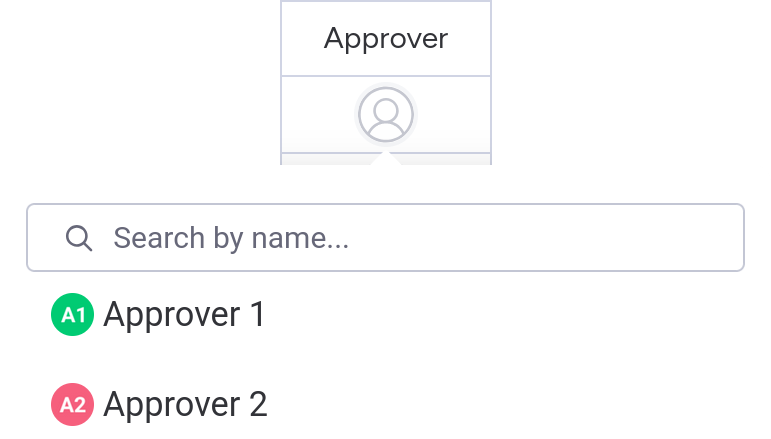
Edit item value dialog
Edit dialog is pretty much the same as the native one. But when Precise assignments limitation is enabled it shows only people and teams who were allowed in column settings.