Split to groups application
Application provides easy way for moving selected items to different groups based on the column values.

Overview
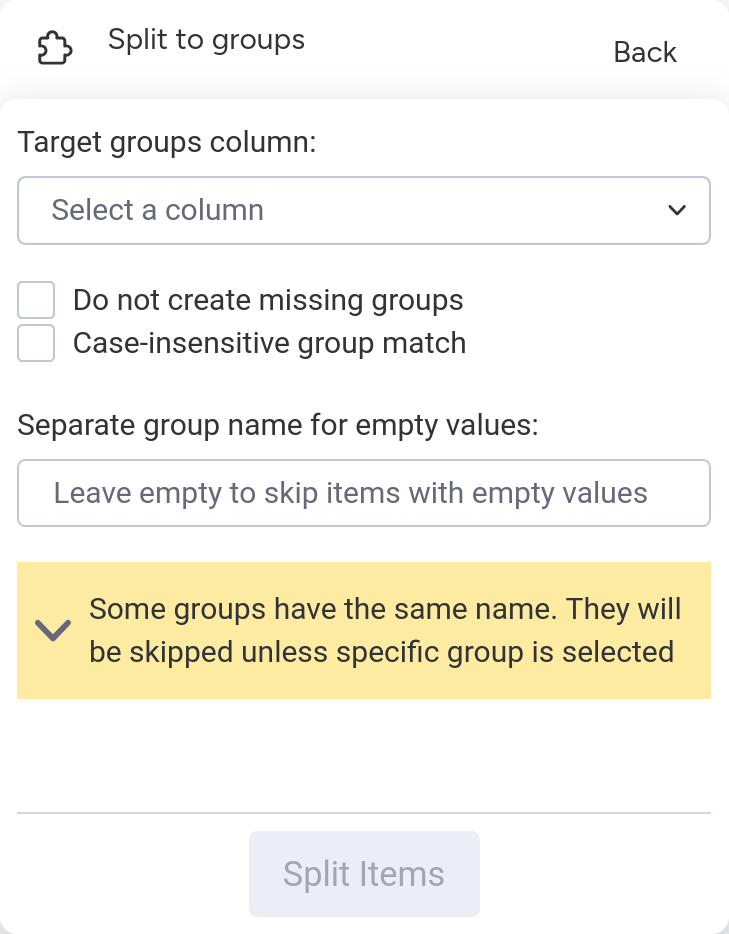
Choosing column for split
At the top of the app a dropdown is available for choosing which column's values will determine where items are moved. Supported column types are:
- Text
- Long text
- Status
- Formula
Missing Groups
The app automatically creates new groups for any column values that don't have matching groups.
Do not create missing groups checkbox can be used to limit moves only to groups that already exist.
Case-Insensitive Matching
Group names must match exactly, including capitalization. "Marketing" won't match "marketing".
Case-insensitive group match checkbox can be used to ignore capitalization when matching values to group names.
Empty Column Values
If some items have empty value for the selected column, they will be skipped.
Separate group name for empty values input can be used to specify special group where such items can be moved instead.
Group Name Conflicts
Multiple groups with the same name may exist. By default app skips moves to ambiguous groups, but when this occurs, an expandable section with ability to specify exact group appears.
Running the Split Operation
Once configuration is complete, click the Split Items button at the bottom of the app.
During the operation progress toast appears showing:
- Analyzed: How many items have been processed to identify if move is needed
- Moved: How many items have been successfully moved
After Completion a results toast appears showing:
- Number of items successfully moved
- Number of items that were skipped (due to empty values or unresolved ambiguities)
If an error occurs, a red toast with an error message explaining what went wrong is displayed.
Enriching standard monday.com export with group column data for further splitting
New exports
For future exports the simplest way to have column with actual group names is to create Formula column with {Group} formula.
On import this values can be mapped to separate Text column, like Imported group. After that Split can be executed using this column.
Existing excel files
For already existing files next formula can be used to create column with group name values:
=IF(AND(INDEX(A:A,ROW())="Name", INDEX(A:A,ROW()-1)<>"", OR(INDEX(A:A,ROW()-2)="", ROW()=3)), "Group Name",IF(AND(INDEX(A:A,ROW()-1)="Name", INDEX(A:A,ROW()-2)<>"", OR(INDEX(A:A,ROW()-3)="", ROW()=4), OR(INDEX(A:A,ROW())<>"", INDEX(B:B,ROW())<>"")), INDEX(A:A,ROW()-2),IF(OR(INDEX(A:A,ROW())<>"", INDEX(B:B,ROW())<>""), INDEX(A:XFD,ROW()-1,COLUMN()),"")))
Paste this formula to the cell next to the last column title and duplicate across whole row (typically can be done with Ctrl+Shift+End followed by Ctrl+D shortcuts).
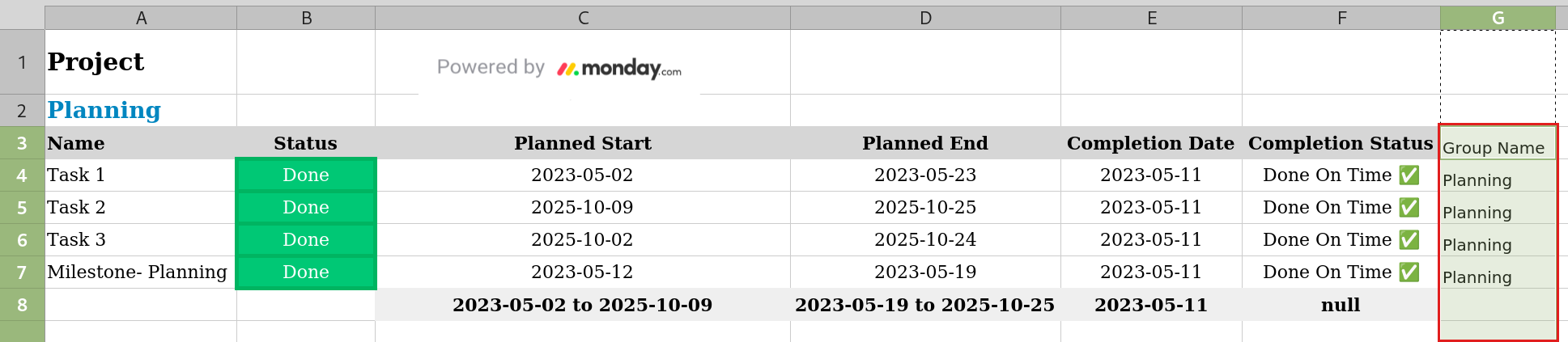
Formula depends on the group headers in the first column.
To unblock further file modifications, like stripping empty lines as preparation for import, the column with group names can be copied,
pasted as values (Ctrl+Shift+V), and the original column can then be removed.